原文:http://www.codeproject.com/useritems/LineCounterAddin.asp
注意:1.本文中的提到的“外接程序”等同与“插件程序”
2.本文提供的源码是在原作的基础上有过修改。
代码行数统计器(一):http://sifang2004.cnblogs.com/archive/2006/06/26/436128.html
代码行数统计器(二)
--Visual Studio 2005插件开发
为你的命令使用自定义图标
当你创建了一个提供菜单项和工具栏按钮的Visual Studio插件时,Visual Studio将用默认的Microsoft Office图标来设置命令,特殊的,就使用一个黄色的笑脸图标(该图标的索引是59),该图标就如下图所示:
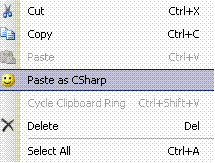
通常,可用的图标是作为MSO库的一部分,你是不能随便能查找到的。为你的命令使用自定义的图标也不是特别难,但是关于任何做这些的文档都非常隐秘,不是那么容易找到。
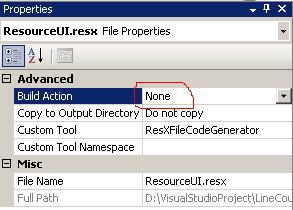
第一步就是在插件工程中加入一个资源文件,并把它的“Build Action”属性改为“None”,我们将在post-build事件中对该文件进行我们自己的处理。
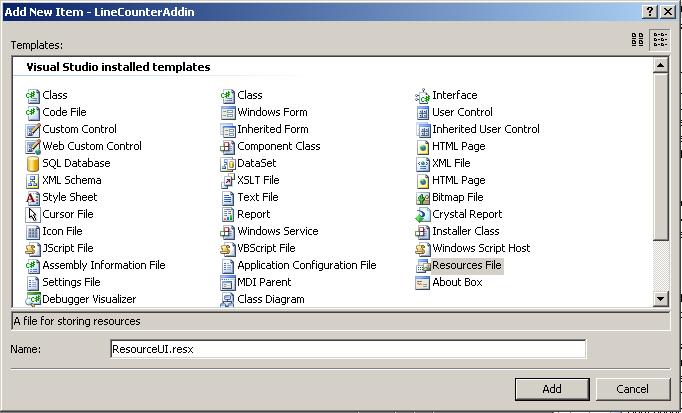
现在有了一个新的资源文件,我们需要把一个图片添加进去,这你可以根据下图来完成:
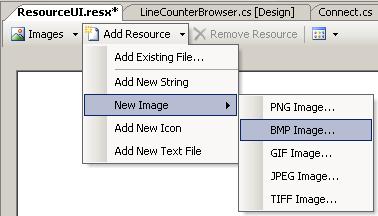
当弹出对图片命名的框时,我们简单命名为“1”,所有Visual Studio引用的图片资源都是通过它们的索引号,资源的ID应该和它的索引是相同的。本插件仅需要一个图片。一旦图片加入了,打开它,把它的尺寸该为16*16px,且它的颜色深度是16色,Visual Studio仅显示那些颜色深度4-24的。具体如何设计该图片你可以自由发挥了,当然如果你不想这么做,你可以从我的源码中下载来覆盖就行了。
当你正确地创建一个资源文件并添加了图片后,我们将要设置正确地不编译它,这种特殊的资源文件应该编译成一个卫星程序集(对于各种资源文件的解释,你可以看的令一篇文章《资源与本地化》),我们可以随着Post-build事件来完成,打开LineCounterAddin工程的属性窗口,按照下图找到Build Events标签。
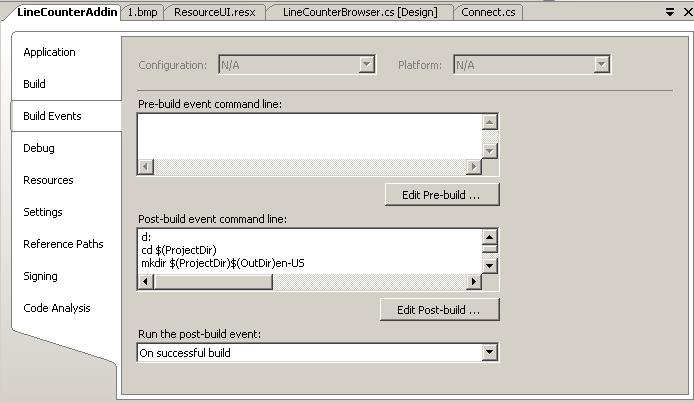
d:
cd $(ProjectDir)
mkdir $(ProjectDir)$(OutDir)en-US
"$(DevEnvDir)..\..\SDK\v2.0\Bin\Resgen" $(ProjectDir)ResourceUI.resx
"$(SystemRoot)\Microsoft.NET\Framework\v2.0.50727\Al" /embed:$(ProjectDir)ResourceUI.resources/culture:en-US /out:$(ProjectDir)$(OutDir)en-US\LineCounterAddin.resources.dll
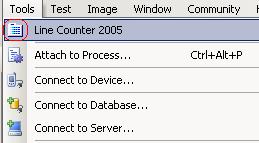
注意:你一定得更改第一行“d:”,它表示你工程所在的驱动器,这一点很重要,否则Resgen命令ResourceUI.resx文件引用的文件,同时也要注意,我们必须安装了.NET 2.0 SDK,否则Resgen命令就是不可用的,该脚本通常是以别的方式工作的,因为它是基于宏指令(macros)而不是指定的路径,当你把这段脚本放到Post-build那地方后,每次当你编译工程或者解决方案时会为你的插件编译生成一个卫星程序集,它将放在你的编译输出文件夹的一个子目录en-US下,当运行本工程时,Visual Studio将会引用卫星程序集以便找到任何命令行图片。下面就是使用使用了自定义的图标的效果:
计算行数
现在我们已经明白了如何创建一个显示新的工具窗口的插件。现在是时候去看看一些精髓代码了,插件的这一块就向编写老式的windows窗口应用,有着用户接口,事件处理以及辅助函数。对于该程序的需求是十分简单的,几个基本的设计模式将帮助我们达到这些要求。
² 主要目标:显示解决方案中每一个工程行数的计算信息。
² 显示解决方案的重要的统计计算以及每个工程的统计计算。
² 显示工程中每个单独的可计算的文件的行数计算信息。
² 正确地为不同类型的源文件计算行数,例如C++,C#,VB,XML等等。
² 允许按名称,行数,文件扩展名排序文件列表。
² 允许按文件类型,工程分组文件列表,也可用不分组。
² 在重新计算时显示处理进程。
让我们从给自己一个简洁,结构良好的用户控件的源文件开始吧。你的用户控件的源文件也应该有如下结构:
using System.Collections.Generic;
using System.ComponentModel;
using System.Drawing;
using System.Data;
using System.Text;
using System.Windows.Forms;
using System.IO;
using Microsoft.VisualStudio.CommandBars;
using Extensibility;
using EnvDTE;
using EnvDTE80;
namespace LineCounterAddin
{
public partial class LineCounterBrowser : UserControl
{
#region Nested Classes
// IComparer classes for sorting the file list
#endregion
#region Constructor
#endregion
#region Variables
private DTE
#endregion
#region Properties
/// <summary>
/// Recieves the VS DTE object
/// </summary>
public DTE2 DTE
{
set
{
m_dte = value;
}
}
#endregion
#region Handlers
// UI Event Handlers
#endregion
#region Helpers
#region Line Counting Methods
// Line counting methods for delegates
#endregion
#region Scanning and Summing Methods
// Solution scanning and general line count summing
#endregion
#endregion
}
#region Support Structures
// Delegate for pluggable line counting methods
delegate void CountLines(LineCountInfo info);
/// <summary>
/// Encapsulates line count sum details.
/// </summary>
class LineCountDetails
{
// See downloadable source for full detail
}
/// <summary>
/// Wraps a project and the line count total detail
/// for that project. Enumerates all of the files
/// within that project.
/// </summary>
class LineCountSummary
{
// See downloadable source for full detail
}
/// <summary>
/// Wraps a project source code file and the line
/// count info for that file. Also provides details
/// about the file type and what icon should be shown
/// for the file in the UI.
/// </summary>
class LineCountInfo
{
// See downloadable source for full detail
}
#endregion
}
从上面这些基本的代码中,你就应该能推断出一些窍门,我们是怎么正确计算各种不同类型的源文件的行数的,以及如何以不同的方法排序的。
现在,我们就要处理如何无缝地处理允许多种计算规则的,而不是用丑陋的if / else或者switch语句,现代语句最大的一个特点就是函数指针,在.NET中是以委托的形式提供的。很多时候,我认为在.NET中委托的价值被极度忽略了,所以,我提供一个简单但却非常优雅的例子,聪明的程序员如何让他们的生活更加简单,这个概念是简单的:建立一个扩展名和委托的行数计算函数直接的映射列表,使用.NET2.0和泛型,我们能非常有效地做到这点。在下面的地方这样更新你的源码:
#region Constructor
/// <summary>
/// Construct the line counter user interface and
/// the countable file type mappings (to icons and
/// counting algorithms).
/// </summary>
public LineCounterBrowser()
{
InitializeComponent();
m_cfgMgr = ConfigManager.Instance;
}
#endregion
这行代码是非常重要的,就是我们刚才提到的建立映射列表:
m_cfgMgr = ConfigManager.Instance;
我们可以根据这行代码顺藤摸瓜,就可以发现真正重要的是下面的方法已经其调用的几个方法,就是这些方法建立映射表:
private void Initialize()
{
if (m_init)
return;
try
{
// Extract the config file path from the default .config file
string configPath = ConfigurationManager.AppSettings["configPath"];
// If the default .config file is missing...
if (configPath == null)
{
// Get the assembly...
Assembly asm = Assembly.GetExecutingAssembly();
string exeRoot = asm.Location;
try
{
// And try explicitly loading it...
Configuration config = ConfigurationManager.OpenExeConfiguration(exeRoot);
configPath = config.AppSettings.Settings["configPath"].Value;
config = null;
// And if it is still not found...
if (configPath == null)
{
// Directly try to load the file from the same path as the .exe
string configRoot = Path.GetDirectoryName(exeRoot);
configPath = configRoot + "LineCounterAdding.config";
}
}
catch (ConfigurationErrorsException)
{
// Directly try to load the file from the same path as the .exe in all other cases
string configRoot = Path.GetDirectoryName(exeRoot);
configPath = configRoot + "LineCounterAddin.config";
}
asm = null;
}
// Replace the $(PersonalFolder) macro with the users MyDocuments path
configPath = configPath.Replace("$(PersonalFolder)", Environment.GetFolderPath(Environment.SpecialFolder.MyDocuments));
// Load the config file
if (File.Exists(configPath))
{
m_doc = new XmlDocument();
m_doc.Load(configPath);
configPath = null;
nsmgr = new XmlNamespaceManager(m_doc.NameTable);
nsmgr.AddNamespace(prefix, "http://synapticeffect.com/Config.xsd");
}
if (m_doc != null)
{
// Process the projecttypes section
XmlElement elProjectTypes = FindConfigElement("//" + prefix + ":projecttypes");
ProcessProjectTypes(elProjectTypes);
elProjectTypes = null;
// Process the filetypes section
XmlElement elFileTypes = FindConfigElement("//" + prefix + ":filetypes");
ProcessFileTypes(elFileTypes);
elFileTypes = null;
// Process the countparsers section
XmlElement elCountParsers = FindConfigElement("//" + prefix + ":countparsers");
ProcessCountParsers(elCountParsers);
elCountParsers = null;
// TODO: Process the metricsparsers section
}
m_init = true;
}
catch
{
}
finally
{
}
}
明眼人很快就明白,代码中读取了一个叫LineCounterAddin.config的配置文件,为了更容易扩展和配置,我们把与计算行数相关的映射信息都包含在这个文件中,下面就是该文件的一部分,没有包含全部内容但框架是完整的,在根元素linecounter下包含了四个子元素,projecttypes,filetypes,countparsers,metricparsers。根据内容大家都基本明白该文件的意义所在了,我仅解释下filetype元素,extension属性表明是何种类型的文件,<icon>子元素指示针对于该种文件类型图标,<for>子元素中<allow>元素指示当计算行数时我们应该使用到的方法,通过解析该文件我们就很容易建立起一种映射。
<?xml version="1.0" encoding="utf-8" ?>
<linecounter xmlns="http://synapticeffect.com/Config.xsd">
<projecttypes>
<projecttype key="{B5E9BD34-6D3E-4B5D-925E
<icon iconIndex="1" />
</projecttype>
<projecttype key="{B5E9BD33-6D3E-4B5D-925E
<icon iconIndex="2" />
</projecttype>
</projecttype>
</projecttypes>
<filetypes>
<filetype extension=".cs" desc="C# File">
<icon iconIndex="1" />
<for what="count">
<allow method="countLinesCStyle" />
</for>
<for what="metrics">
<allow method="metricsTMV" />
</for>
</filetype>
<filetype extension=".vb" desc="VB.NET File">
<icon iconIndex="2" />
<for what="count">
<allow method="countLinesVBStyle" />
</for>
<for what="metrics">
<allow method="metricsTMV" />
</for>
</filetype>
</filetypes>
<countparsers>
<countparser assembly="." classname="." methodname="CountLinesGeneric" countparserID="countLinesGeneric" />
<countparser assembly="." classname="." methodname="CountLinesCStyle" countparserID="countLinesCStyle" />
<countparser assembly="." classname="." methodname="CountLinesVBStyle" countparserID="countLinesVBStyle" />
<countparser assembly="." classname="." methodname="CountLinesXMLStyle" countparserID="countLinesXMLStyle" />
</countparsers>
<metricsparsers>
<metricsparser assembly="." classname="." methodname="GatherMetricsTMV" metricsparserID="metricsTMV"/>
</metricsparsers>
</linecounter>
读取了上述文件后,并通过解析相关子元素来建立映射列表,我们在这只看下如何建立文件类型以及相关处理方法之间的映射列表。
XmlElement elFileTypes = FindConfigElement("//" + prefix + ":filetypes");
通过该语句调用FindConifElement方法得到元素<filetypes>。
private XmlElement FindConfigElement(string path)
{
if (m_doc == null)
return null;
if (path == null)
return null;
try
{
XmlElement root = m_doc.DocumentElement;
XmlElement elem = (XmlElement)root.SelectSingleNode(path,nsmgr);
return elem;
}
catch
{
}
return null;
}
这段代码我做了修改,在原著提供的源码中是使用了SelectSingleNode的另一重载方法:
XmlElement elem = (XmlElement)root.SelectSingleNode(path);
也就是,没有名称空间的那个,这点我是比较纳闷的,因为我们要读取的LineCounterAddin.config文件中明显有名称空间啊:
<linecounter xmlns="http://synapticeffect.com/Config.xsd">
在这种情况下如果用SelectSingleNode(path)方法应该是不行的,MSDN上似乎也是这么说的,事实上我运行原著的代码在这行也是根本就没有找到相关元素的。我添加了相关代码
nsmgr = new XmlNamespaceManager(m_doc.NameTable);
nsmgr.AddNamespace(prefix, "http://synapticeffect.com/Config.xsd");
在用SelectSingleNode(path,nsmgr)方法就可以得到想要的元素了。
赶紧回到主题上吧,用如下方法,把文件扩展名和其相关处理联系起来,我这里为什么说“相关处理”而不是“计算行数的函数”呢,是因为,对应于某扩展名,我们需要的不仅仅是通过它关联其“计算行数的函数”,我们还要得到其关联的图标,以及对该种文件类型的描述。所以我们这里灵活处理,我用类一个类FileType来储存各种相关信息。
private void ProcessFileTypes(XmlElement elFileTypes)
{
if (elFileTypes != null)
{
m_fileTypes = new Dictionary<string, FileType>();
XmlNodeList nlFileTypes = elFileTypes.GetElementsByTagName("filetype");
for (int i = 0; i < nlFileTypes.Count; i++)
{
XmlElement elFileType = (XmlElement)nlFileTypes[i];
try
{
FileType ftype = new FileType(elFileType);
m_fileTypes.Add(ftype.Extension, ftype);
}
catch
{
}
}
}
}
FileType类的是一个嵌套在ConfigManager.cs文件中的公共类,相关代码请参考源码,比较简单,我不做解释了。现在我们已经建好了相关的映射了,该是编写实际的计算方法的时候了,这些方法都很简单,仅需要匹配先前声明的委托delegate void CountLines(LineCountInfo info).提供的签名就行了。下面就是我们建立的四个方法。
private void CountLinesGeneric(LineCountInfo info)
private void CountLinesCStyle(LineCountInfo info)
private void CountLinesVBStyle(LineCountInfo info)
private void CountLinesXMLStyle(LineCountInfo info)
所有这四个方法都匹配委托CountLines的签名。在默认的构造函数中我们添加了一些代码,使得这些方法被映射到恰当的扩展名。我现在以计算某一.cs文件为例,解释代码是如何根据被计算的文件类型调用相应的计算方法的。先还是重新看一下LineCounterAddin.config该配置文件的<countparsers>元素,为了插件更加灵活,我们把那四个方法也放进了该配置文件。
<countparsers>
<countparser assembly="." classname="." methodname="CountLinesGeneric" countparserID="countLinesGeneric" />
<countparser assembly="." classname="." methodname="CountLinesCStyle" countparserID="countLinesCStyle" />
<countparser assembly="." classname="." methodname="CountLinesVBStyle" countparserID="countLinesVBStyle" />
<countparser assembly="." classname="." methodname="CountLinesXMLStyle" countparserID="countLinesXMLStyle" />
</countparsers>
我们应该还记得在ConfigManagers.cs文件中,类ConfigManager在构造函数中就调用了的重要的初始化方法:
private void Initialize()
在该方法中,有这么一个语句:
ProcessCountParsers(elCountParsers);
调用的ProcessCountParser方法就是根据<countparsers>元素的内容生成CountParserDelegate委托实例并以<countparser>元素的属性countparserID的值为键值,存储在m_countParsers中:
private Dictionary<string, CountParserDelegate> m_countParsers;
下面就是方法ProcessCountParsers()的代码:
private void ProcessCountParsers(XmlElement elCountParsers)
{
m_countParsers = new Dictionary<string, CountParserDelegate>();
m_countParsers.Add("countLinesGeneric", new CountParserDelegate(CountLinesGeneric));
if (elCountParsers != null)
{
XmlNodeList nlCountParsers = elCountParsers.GetElementsByTagName("countparser");
for (int i = 0; i < nlCountParsers.Count; i++)
{
XmlElement elCountParser = (XmlElement)nlCountParsers[i];
try
{
string assembly = elCountParser.Attributes["assembly"].Value;
string className = elCountParser.Attributes["classname"].Value;
string methodName = elCountParser.Attributes["methodname"].Value;
string parserID = elCountParser.Attributes["countparserID"].Value;
CountParserDelegate countParser = null;
if (assembly == "." && className == ".")
{
countParser = (CountParserDelegate)Delegate.CreateDelegate(typeof(CountParserDelegate), this, methodName);
}
else
{
// TODO: Load third-party assembly and map delegate
}
if (countParser != null && !m_countParsers.ContainsKey(parserID))
{
m_countParsers.Add(parserID, countParser);
}
}
catch
{
}
}
}
}
其实这似乎都是先准备工作,在代码中调用排序方法就是下面两行代码:
CountParserDelegate counter = MapCountAlgorithm(info.FileType);
counter(info);
MapCountAlgorithm方法中的参数中的info就是在先前提到的类LineCountInfo的一个实例,传入的参数是info.FileType,因为我例举的是计算.cs文件,所以这info.FileType就等价于传入了字符串”.cs”。
private CountParserDelegate MapCountAlgorithm(string extension)
{
CountParserDelegate countParser = m_cfgMgr.MapCountParser("countLinesGeneric");
string method = m_cfgMgr.AllowedMethod(extension, "count", 0);
if (method != null)
{
CountParserDelegate tempParser = m_cfgMgr.MapCountParser(method);
if (tempParser != null)
countParser = tempParser;
}
return countParser;
}
在MapCountParser方法中又是主要调用了类ConfigManager中的MapCountParser方法来获取一个CountParserDelegate的实例,在此之前,我们通过调用ConfigManager中的AllowedMethod方法来得到计算“.cs”文件的行数的计算方法的名称。MapCountParser方法其实很简单,它检查在m_countParsers的键中是否包含有传人的参数,如果有,则把相应的委托实例返回。
public CountParserDelegate MapCountParser(string method)
{
if (m_countParsers.ContainsKey(method))
{
return m_countParsers[method];
}
return null;
}
就是这样,我们就可用灵活而不是用丑陋的难于管理的if / else或者switch case语句来得到我们想要的计算方法,这样便于我以后扩展新的计算方法。还有那些统计整个工程或者整个解决方案的相关代码就请大家自己去体会吧。
排序
本文中我希望提及的最后一个概念就是对文件列表排序,我经常看到.NET开发人员问如何对ListView控件中的项进行排序,答案总是比较少而且各不相同。我相信这个Line Counter插件对许多人来说是个很有用的实用工具,我也希望这儿对ListView进行排序的解释会广泛曝光。最后,这个概念的确非常简单。使用模板方法模式使得用不同方法排序不同数据的多列非常简单,首先让我们在控件中嵌套类区域中增加一个抽象类:
abstract class ListViewItemComparer : System.Collections.IComparer
{
public abstract int Compare(ListViewItem item1, ListViewItem item2);
public ListView SortingList;
public int Column;
#region IComparer Members
int System.Collections.IComparer.Compare(object x, object y)
{
if (x is ListViewItem && y is ListViewItem)
{
int diff = Compare((ListViewItem)x, (ListViewItem)y);
if (SortingList.Sorting == SortOrder.Descending)
diff *= -1;
return diff;
}
else
{
throw new ArgumentException("One or both of the arguments are not ListViewItem objects.");
}
}
}
该类作为我们的“抽象方法”的抽象之家,模板方法模式在抽象类简单地提供一个普通的,骨架方法,全部或者部分实际的算法推迟到子类中去实现,我们使用单一的类型和单一的方法,但是针对ListView中的不同列使用不同算法,这将简化了我们的排序。为了达到该目标,我们必须为要排序的列的每种类型实现更多的嵌套类(这些你可以查看源代码)。一旦我们明确的定义好的算法,我们需要实现一个针对ListView. ColumnClick事件的简单事件处理器:
private int lastSortColumn = -1; // Track the last clicked column
private void lvFileList_ColumnClick(object sender, ColumnClickEventArgs e)
{
ListViewItemComparer comparer = null;
// Create an instance of the specific comparer in the 'comparer'
// variable. Since each of the explicit comparer classes is
// derived from the abstract case class, polymorphism applies.
switch (e.Column)
{
// Line count columns
case 1:
case 2:
case 3:
comparer = new FileLinesComparer();
break;
// The file extension column
case 4:
comparer = new FileExtensionComparer();
break;
// All other columns sort by file name
default:
comparer = new FileNameComparer();
break;
}
// Set the sorting order
if (lastSortColumn == e.Column)
{
if (lvFileList.Sorting == SortOrder.Ascending)
{
lvFileList.Sorting = SortOrder.Descending;
}
else
{
lvFileList.Sorting = SortOrder.Ascending;
}
}
else
{
lvFileList.Sorting = SortOrder.Ascending;
}
lastSortColumn = e.Column;
// Send the comparer the list view and column being sorted
comparer.SortingList = lvFileList;
comparer.Column = e.Column;
// Attach the comparer to the list view and sort
lvFileList.ListViewItemSorter = comparer;
lvFileList.Sort();
}
虽然你也许被这段代码搞得不是那么明白了,当比较ListView的元素时ListViewItemComparer抽象基类的“模板方法”被List.Sort()方法调用,既然我们每个显示的比较类都是派生自ListViewItemComparer抽象类,且每个都overiides抽象的Compare(ListViewItem item1, ListViewItem item2)方法,所以比较方法的显示的实现类被使用,只要合适的显示类被创建并赋值给变量compare,那么对不同数据的多行进行排序就成为了可能。不仅仅是那,还有可能执行更加复杂的排序,例如,先对行数排序,如果有两行的行数是相同的,再可以根据名称来排序,确保有一个被正确地排序的文件列表(这也就是Line Counter插件所要做的)。
安装插件
建好插件后,测试它是简单而直接的事情,因为向导帮助我们建立了一个“For Testing”
版本的.Addin文件。这使得在出现Visual Studio的副本中摆弄插件和运行工程一样简单。任何使用你插件的用户都不会这么幸运,因为他们都也许没有源代码让他们玩弄。给你的插件创建一个安装工程就像给其它工程创建安装工程一样,但是有一些窍门保证事情简单。
我们给LineCounterAddin创建一个名为LineCounterSetup的安装工程,建好工程后,打开File System Editor件系统,除了Application Folder外,把其它文件夹都删掉,选择Application Folder,改变DefaultLocation属性为'[PersonalFolder]\Visual Studio 2005\Addins'。这将致使插件默认安装在用户的AddIns文件夹中,由于Visual Studio自动为寻找.Addin文件扫描该文件夹,这使得安装简单便利。返回到File System Editor,右键Application Folder,建立新文件夹,命名为LineCouterAddin,这就是我们为我们的插件(连同任何附加文件,例如包含我们的图片资源的卫星程序集)安装实际的.dll的地方。在LineCounterAddin下建立一个新的“en-US”文件夹。
现在我们来配置安装文件夹,我们需要添加我们想要安装的原料,在solution explorer中右键安装工程选择“Add”菜单下的“Project Output…”选项,为LineCounterAddin工程选择Primary Output。现在从LineCounterAddin工程中增加几个文件(从Add菜单中选择’File…’)。包括:
- For Installation\AddRemove.ico
- For Installation\LineCounterAddin.AddIn
- bin\en-US\LineCounterAddin.resources.dll
当你添加所有包含的文件后,你还需要从Detected Dependencies文件夹中排除几个依赖项,我们仅需要保留Microsoft .NET Framework,所有其它的在任何安装了Visual Studio 2005的系统中都是可用的,为了排除一个依赖项,选择它后,把它的Exclude改为true,(注意:你可用一次选择多项同时改变它们)
配置安装工程的最后一步是把所有文件放进正确的文件夹中,把文件放置在如下的位置:
- LineCounterAddin.AddIn -> Application Folder\
- Primary output from LineCounterAddin -> Application Folder\LineCounterAddin\
- AddRemove.ico -> Application Folder\LineCounterAddin\
- LineCounterAddin.resources.dll -> Application Folder\LineCounterAddin\en-US\
当你把所有文件都放到正确的位置后,你就能编译你的安装工程生成便于分发的LineCounterSetup.msi文件和一个Setup.exe文件,如果你想在Add/Remove程序控制面板中配置一个自定义图标,在solution explorer中右键LineCounterSetup工程,更改AddRemoveProgramsIcon属性,让它使用AddRemove.ico文件,你应该在添加任何其它文件前就做这件事情,因为当你这么做后,AddRemove.ico文件被添加进LineCounterSetup工程中。在更改解决方案中的其它工程后,我们应该手动重新编译安装工程,因为普通编译不会包含对安装工程的编译。
编译者的结论
首先,我认为这是一个很有用的插件,如果继续得到改进和增强,我想该插件会被更多开发者使用。
对于该插件源码的学习,对于我们掌握怎样正确创建插件工程是很有帮助的,而且也可从中学到不少编程技巧,例如委托和模板方法。
我在学习该插件源码的时候,发现有些菜单还是不起作用的,因为暂时时间比较紧,没有太多时间研究这个,还有我觉得安装工程有点问题,但是由于我对安装工程的经验极少,也弄不出个子丑寅卯来。希望大家一起研究下,既然是开源的,那就应该不涉及到版权问题吧!
代码行数统计器(一):http://sifang2004.cnblogs.com/archive/2006/06/26/436128.html

 浙公网安备 33010602011771号